Connecting an Instagram Account
To connect Instagram, your account must be a professional account (an Instagram Business or Creator account, not a personal one). The Instagram card signs you in with Instagram directly, and no Facebook Page is needed. If your Instagram account is linked to a Facebook Page you manage, you can instead connect it through Facebook. Both ways are covered below.
Before you start
Section titled “Before you start”You need:
- An Instagram Business or Creator account — the connect card is labeled “Connect your Instagram Business or Creator account.” A personal Instagram account cannot be connected.
- The Instagram login for that account (or, for the Facebook route, a Facebook profile that manages the linked Page).
Two ways to connect Instagram
Section titled “Two ways to connect Instagram”There are two connection methods, and you choose by which card you click.
- The Instagram card (Instagram Login). You sign in with Instagram itself. The account does not need to be linked to a Facebook Page. This is the right choice for most standalone Instagram accounts.
- The Facebook card (Facebook Login). If your Instagram professional account is linked to a Facebook Page, connecting that Page through Facebook also brings in the linked Instagram account. You don’t click the Instagram card at all. See Connecting a Facebook Page.
One difference matters day to day: Like. Liking an Instagram comment needs a permission that exists only on the Facebook Login screen, so an account connected through the Instagram card cannot like comments. The full permission lists for both are in Data access and storage.
How to connect with the Instagram card
Section titled “How to connect with the Instagram card”There are two places to start a connection: during onboarding, or later from the Accounts page.
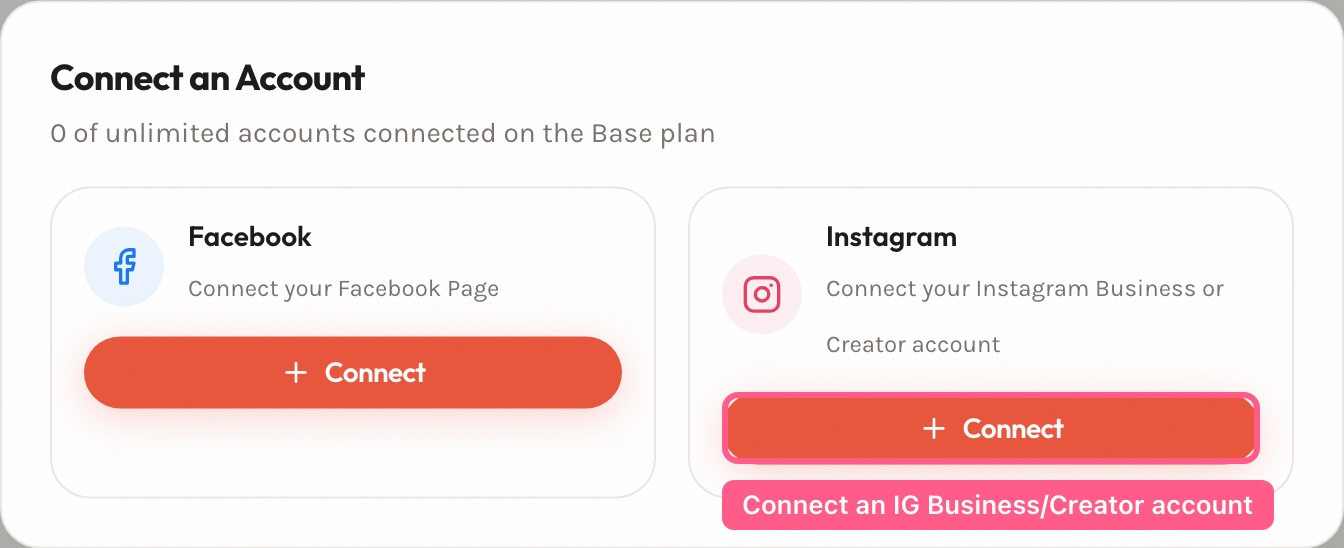
- Open the connect screen. During onboarding this is the first step. Later, go to Accounts and click Add at the top of the account list, which opens the Connect an Account window.
- Click Connect on the Instagram card. The button reads Connect (or Reconnect if you have connected this platform before). It shows Connecting… while it redirects you to Instagram.
- Authorize on Instagram. Instagram shows a consent screen listing the access being requested. Approve it to continue. This screen belongs to Meta, not to this app.
- Select pages to monitor. After authorizing, you land on Select pages to monitor, where your Instagram account is listed with an Instagram label. Select it, then finish.
If you connect through Facebook instead, the same Select pages to monitor step lists the linked Instagram account as its own item, with an Instagram label. It carries the name of the Facebook Page it is linked to, so look for the Instagram label rather than a different name.
What we can access
Section titled “What we can access”When you authorize with the Instagram card, you are granting access to:
- Read the connected Instagram account — its profile and media.
- Moderate comments on that Instagram account — this is what lets Workflows hide and reply to comments.
- Read and reply to direct messages on the Instagram account.
Verify the connection is active
Section titled “Verify the connection is active”After connecting, open Accounts and check the account’s status badge:
- Active (green) — connected and ingesting comments normally.
- Error (red) — Meta refused the app’s access; the banner shows the reason when one was recorded. Reconnect it.
A newly connected account should read Active. If it does not, see the troubleshooting below and Fix a disconnected account.
Troubleshooting
Section titled “Troubleshooting”I can’t see my Instagram account
Section titled “I can’t see my Instagram account”Symptom: You start the Instagram connection, but your account is missing from the list, or connection appears to fail.
Cause: Usually one of these:
- The account is still a personal Instagram account, not Business or Creator.
- You went through the Facebook card, and the Instagram account is not linked to the Facebook Page you connected — so Facebook had no Instagram account to return.
- You signed in to Instagram as a different account than the one you meant to connect.
Fix:
- In Instagram, switch the account to Business or Creator if it is still personal.
- To connect without a Facebook Page, use the Instagram card, not the Facebook card.
- Return to Accounts, click Add, and click Connect (or Reconnect) on the Instagram card. Sign in as the account you want.
- On Select pages to monitor, confirm the account now appears and select it.
Prevention: Set the account to Business or Creator before you start the connection, and check which Instagram account is signed in.
The account shows Error
Section titled “The account shows Error”Symptom: The account connected, but later shows a red Error badge.
Cause: Access tokens expire, and connections can drop for reasons outside this app. This is expected over time — see Why connections expire.
Fix: Reconnect it: on Accounts, click Add, then Reconnect on the card you originally connected with. If it was connected through a Facebook Page, reconnect the Facebook account. Full steps are in Fix a disconnected account.
Prevention: Reconnect promptly when you see the Error badge. While an account is disconnected, its comment ingestion pauses; the poll backfills comments after you reconnect, but only within the window Meta still makes available.