
Connecting a Facebook Page
Connecting a Facebook Page lets The Social Tools read and moderate the comments on that Page. This guide covers the access you need, the connect flow, what each permission is for, and what to do when your Page won’t appear in the list.
What you need
Section titled “What you need”Before you start:
- A Facebook account that can manage the Page. During sign-in, Facebook only shares the Pages your account has access to, and the app can only connect what Facebook shares. Which Page roles give that access is Meta’s rule, not ours — if you are unsure, check your access to the Page in Facebook, or see Meta’s own help on Page roles.
- The permissions granted on the Facebook screen. We request a fixed set of permissions (described below). If you decline them, moderation features that depend on them stop working.
Connect a Facebook Page
Section titled “Connect a Facebook Page”-
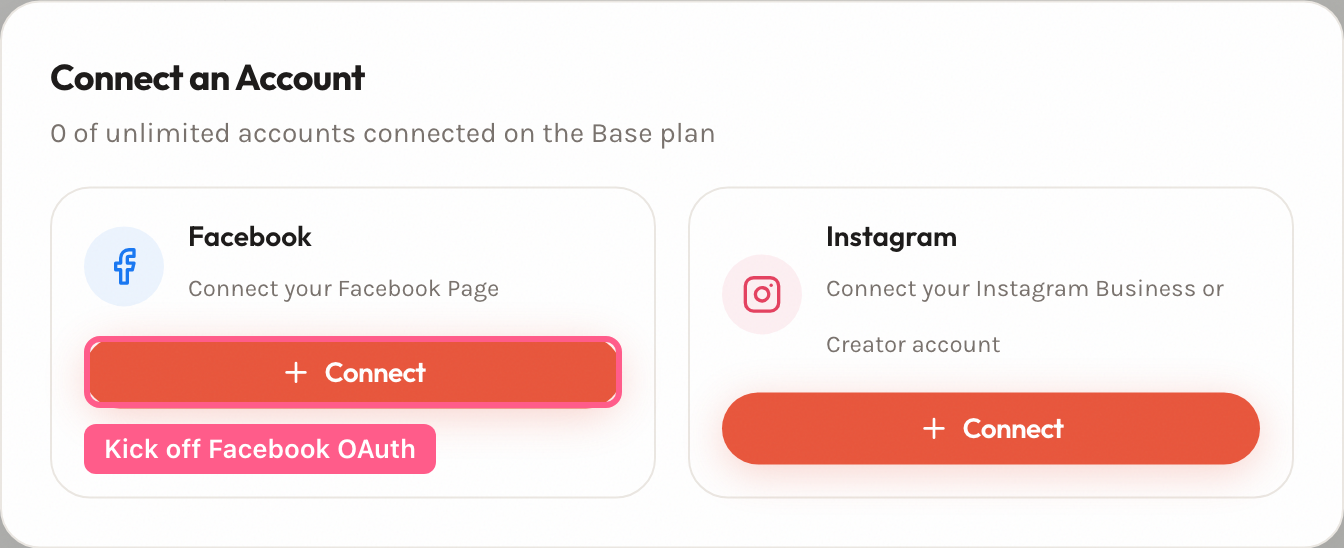
Open the connect screen. On the Accounts page, select Add at the top of the account list to open the Connect an Account window, then select Connect on Facebook. (During onboarding, select the Connect your Facebook Page card instead.)
-
Sign in to Facebook and review the permissions screen. Grant every requested permission so moderation works as expected.
-
Choose which Pages to monitor on the Select pages to monitor step. Both paths show it on a first connect. When you later reconnect, it opens only if Facebook returns Pages you have not chosen for yet; Pages you already chose keep their setting.
-
Confirm the account. Back on the Accounts page, the account shows an Active status and a Connected pill. Use the per-Page monitoring switch to control which Pages are watched.
What the permissions screen asks for
Section titled “What the permissions screen asks for”The Social Tools requests only the permissions it needs to read and moderate comments and messages. It does not request any advertising permissions. Each item on the Facebook screen maps to a specific capability:
| Permission | What it’s used for |
|---|---|
email | Identify the connected account by its email |
pages_show_list | List the Facebook Pages you can access |
pages_read_engagement | Read your Page’s posts and comments |
pages_read_user_content | Read comments written by other people |
pages_manage_engagement | Reply to, hide, and delete comments |
pages_manage_metadata | Subscribe to real-time (webhook) updates on the Page |
pages_messaging | Read and reply to Page Messenger DMs (direct messages) |
instagram_basic | Read an Instagram account linked to the Page |
instagram_manage_comments | Moderate comments on the linked Instagram account |
instagram_manage_engagement | Like comments on the linked Instagram account |
instagram_manage_messages | Read and reply to DMs on the linked Instagram account |
If you decline a permission, the matching capability fails. For example, without pages_manage_engagement, hide and reply actions won’t run. For details on what data we store and how long we keep it, see Data access and storage.
Connecting Pages managed through a Business Portfolio
Section titled “Connecting Pages managed through a Business Portfolio”If your Page access comes from a Meta Business Portfolio (Business Manager) rather than your personal Facebook login — for example, you’re an agency managing Pages for clients, or your organization assigns Page access through Business Manager instead of adding you as a personal Page admin — use the Facebook (Business) tile instead of the standard Facebook tile.
The standard Facebook connect only discovers Pages your account personally administers — and, if Facebook’s sign-in screen asks you to choose Pages, only the ones you chose there. Facebook (Business) discovers every Page you have access to through a Business Portfolio, including Pages granted via agency/client access, regardless of your personal admin role on that Page.
Both connect options can coexist — connect Facebook for Pages you personally administer and Facebook (Business) for Pages you only access through a Business Portfolio. Pages appear with a small badge showing the Business Portfolio they came from wherever they’re listed. If a Page discovered through Facebook (Business) is already connected via your standard Facebook account, it’s left where it is and a one-time notice tells you how many Pages were skipped.
When it doesn’t work
Section titled “When it doesn’t work”My Page isn’t in the list
Section titled “My Page isn’t in the list”Symptom: You reach the Select pages to monitor step (or the Accounts page) and the Page you expected is missing.
Cause: the app lists exactly the Pages Facebook returns through pages_show_list for the profile you signed in with. If a Page is missing, Facebook did not share it with the app for that profile — most often because the profile cannot manage that Page, or because you signed in as a different profile.
Fix:
- In Facebook, check that the profile you sign in with can manage the Page. If it can’t, ask a Page admin for access. Which roles qualify is Meta’s rule — see Meta’s own help on Page roles.
- Reconnect: on the Accounts page, select Add, then Reconnect on Facebook. If Facebook’s sign-in screen offers a choice of Pages, include the one you want.
Prevention: Sign in with the Facebook account that manages the Page, and share every Page you want to monitor when Facebook asks.
It connected the wrong account
Section titled “It connected the wrong account”Symptom: The connected account belongs to a different Facebook profile than intended, so the wrong Pages appear.
Cause: Facebook signs you in with whichever profile is already logged in to Facebook in your browser.
Fix:
- In a separate browser tab, sign out of Facebook (or switch profiles).
- Return to the Accounts page and select Add, then Reconnect on Facebook, and sign in with the correct profile.
Prevention: Before connecting, check which Facebook profile is signed in.
Business Manager complications
Section titled “Business Manager complications”Symptom: The Page is owned by a Business (Business Manager / Meta Business Suite) and either doesn’t appear or connects without the access you expected.
Fix: connect it with the Facebook (Business) tile, as described in Connecting Pages managed through a Business Portfolio. The app can only connect the Pages Meta shares with it, so if a Page still doesn’t appear, the access is being withheld on Meta’s side. How a Business Portfolio grants a person access to a Page — asset assignment and the roles involved — is set in Meta Business Suite; see Meta’s own help, or ask whoever administers your Business Portfolio.