Fixing a disconnected account
A disconnected account stops moderating. To fix it, open Accounts, select the account, and click Reconnect account in the red banner. This page shows how to read the connection state, reconnect Facebook and Instagram, confirm moderation restarted, and what to do when reconnect fails.
Check the connection state
Section titled “Check the connection state”Open Accounts and select the account. The detail panel shows a status badge and, when there is a problem, a banner. An account is in one of two states.
A red Error badge. The app’s access to the account is no longer valid: Meta refused it when the app tried to read the account’s pages, or told the app its access was removed. This covers every cause — an expired token, a permission you removed, access you revoked in Meta’s settings — so an account that has lost access always shows Error.
A red banner under the badge says the account is disconnected and has a Reconnect account button, a link to this guide, and Get help. When the app recorded a reason, the banner shows it too. The reason is the error text Meta returned, or a note such as “Deauthorized by user via facebook” when you removed the app on Meta’s side. It does not name a specific missing permission, so treat it as a clue rather than a checklist.

Active
Section titled “Active”An Active badge (green) and, on the account’s pages, an Ingestion row reading Active. Nothing to fix — the account is connected and moderating. If a page shows Ingestion: Inactive or Last monitored: Never while the badge is Active, the page monitoring switch may be off; turn it on.
Reconnect Facebook
Section titled “Reconnect Facebook”- Open Accounts and select the Facebook account.
- Click Reconnect account in the red banner. (You can also click Add at the top of the account list and Reconnect on the Facebook card — it is the same sign-in.)
- Complete the Facebook login and grant every requested permission. Do not clear any permission — the app needs each one to read and moderate comments.
- You return to Accounts. The badge should change to Active.
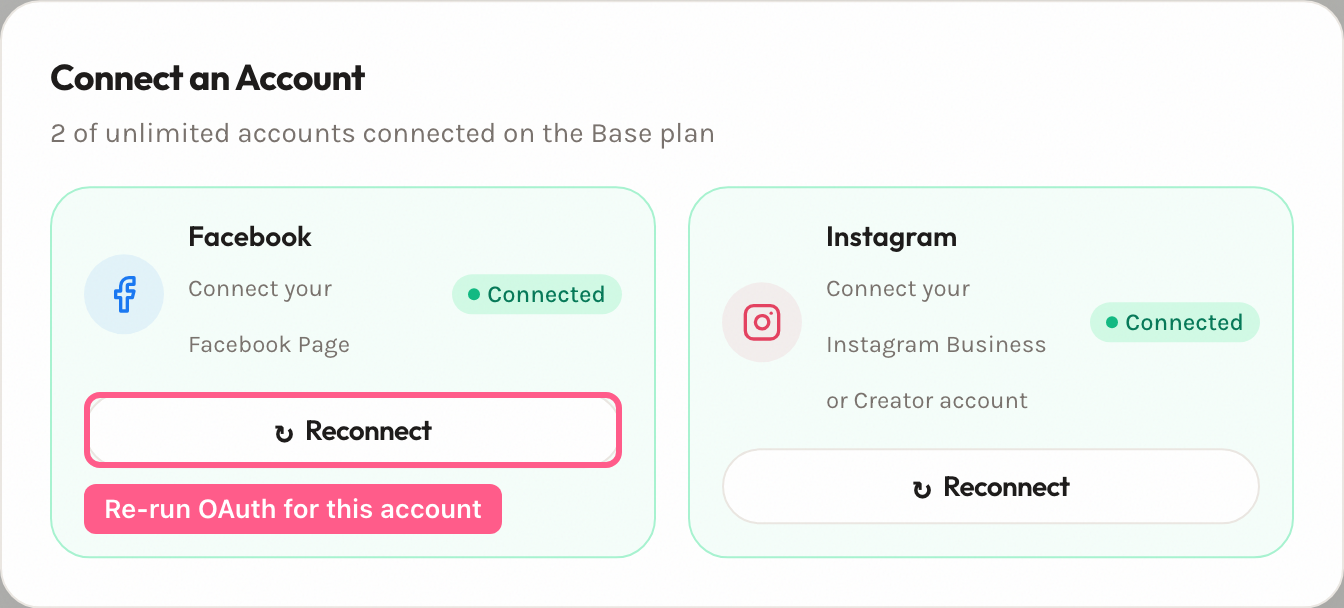
Reconnecting keeps your page choices. Pages you already chose to monitor (or not) keep that setting, and you are not asked again. If Facebook returns a page the app has not seen before, the Select pages to monitor picker opens for the new pages only.
Reconnect Instagram
Section titled “Reconnect Instagram”How you reconnect an Instagram account depends on how you connected it.
- Through a Facebook Page. The Instagram account is listed as a page, with an Instagram label, under its Facebook account on Accounts. Reconnect the Facebook account as above; that restores the Instagram account too. There is nothing separate to reconnect.
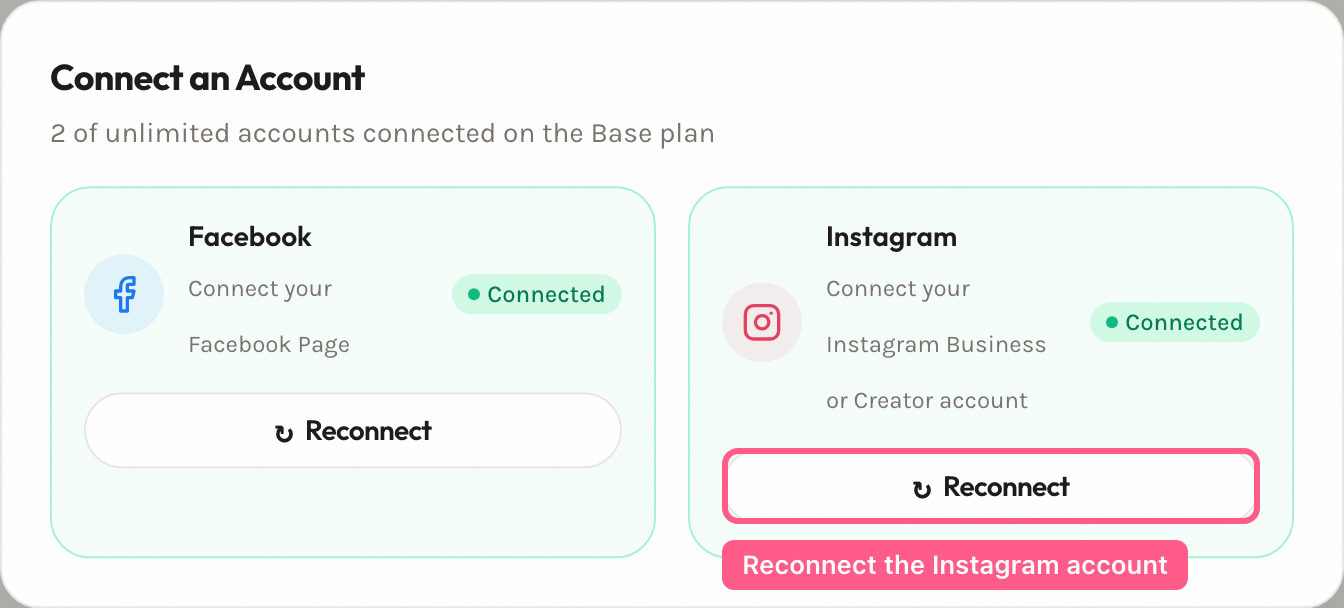
- Directly (the Instagram card). The account is its own Instagram account on Accounts. Reconnect it from its own banner:
- Open Accounts, select the Instagram account, and click Reconnect account in the red banner (or click Add, then Reconnect on the Instagram card).
- Complete the Instagram login and grant every requested permission.
- Confirm the badge returns to Active on Accounts.
Confirm moderation resumed
Section titled “Confirm moderation resumed”After you reconnect, check that moderation restarted:
- The account badge reads Active (green).
- The account’s pages show Ingestion: Active.
- A page’s Last monitored time updates to a recent time on the next sync.
Comments posted while the account was disconnected are pulled in on the next sync and deduplicated, so you do not get repeats. Backfill can take a few minutes to appear.
If reconnect doesn’t work
Section titled “If reconnect doesn’t work”If the account returns to Error after you reconnect, or a page you expected is missing, it is usually one of these three.
You reconnected but the account still shows Error
Section titled “You reconnected but the account still shows Error”Cause: a required permission was not granted. The app needs specific Meta permissions to work — for example pages_read_engagement to read comments and pages_manage_engagement to hide or reply. If you cleared a permission during login, or revoked the app’s access in your Meta settings, reconnect finishes but moderation still cannot run.
Fix: reconnect again and leave every requested permission enabled. The red banner shows the error Meta returned, which can help, but it does not name the missing permission — so grant every permission rather than guessing which one.
Reconnect can’t find your Facebook Page
Section titled “Reconnect can’t find your Facebook Page”Cause: the app can only see the Pages that Facebook returns for the profile you signed in with. If that profile no longer has access to a Page, Facebook does not return it, and the app cannot reconnect it.
Fix: check in Facebook that the profile you sign in with can still manage the Page — if not, ask a Page admin to restore your access — then reconnect. For which Page roles exist and what each allows, see Meta’s own help.
The account dropped after a change on Meta’s side
Section titled “The account dropped after a change on Meta’s side”Cause: Meta can end the app’s access before a token’s expiry date, for reasons on its side such as a change to your account’s security settings. The app sees only that Meta refused the token, and shows Error.
Fix: click Reconnect account in the account’s banner. Reconnecting issues a new token.
Prevent this next time
Section titled “Prevent this next time”- Reconnect as soon as an account shows Error — moderation for that account’s pages stays paused until you do.
- Keep access to the Facebook Page you moderate. Without it, reconnect cannot find the Page.
- Meta access is time-limited by design, and the app renews tokens before they expire where Meta allows it. For how that works and how we alert you, see Why connections expire.